macOS app · ftp, sftp, webdav, s3
The server,
without hunting for it.
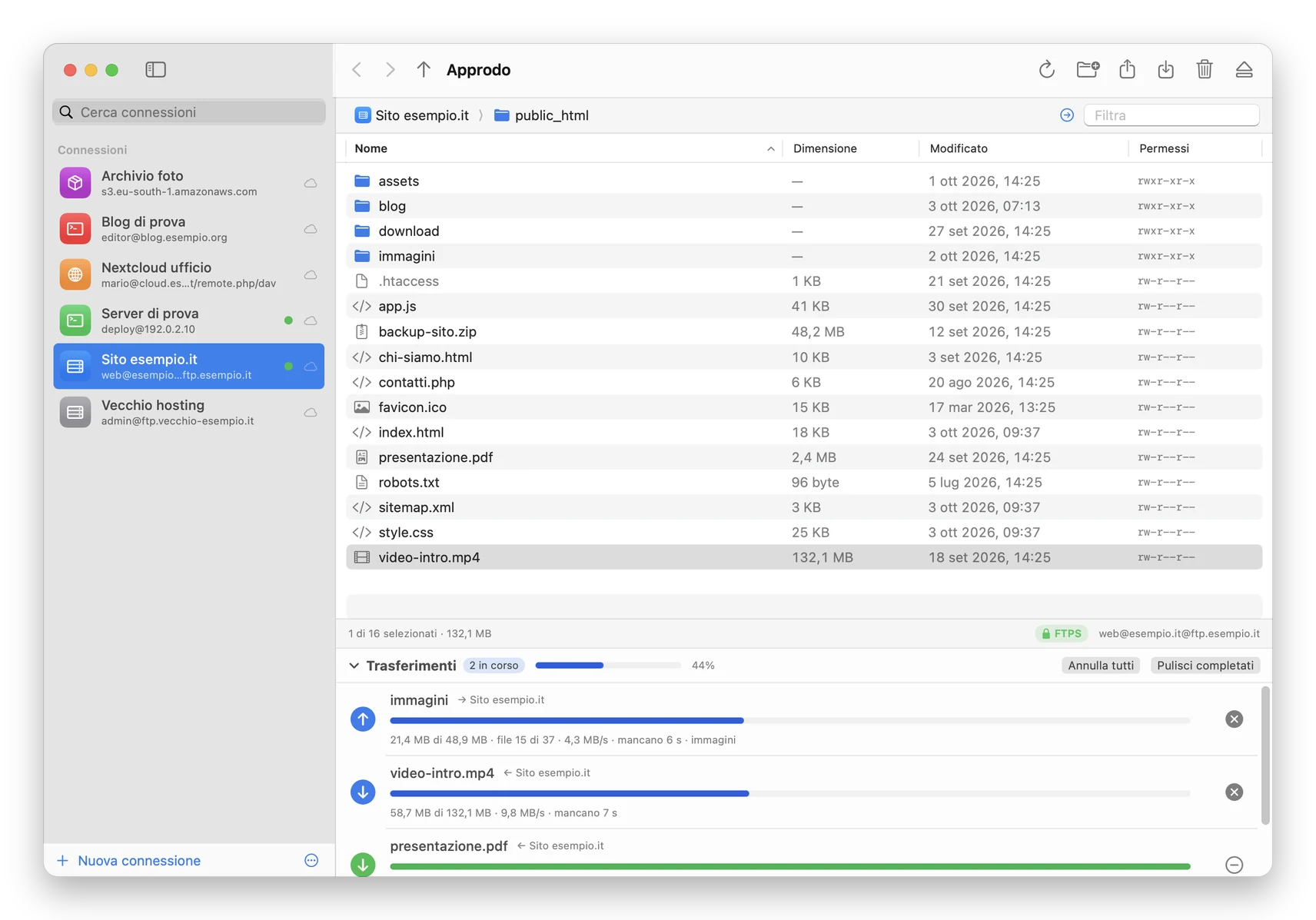
Approdo is a client for FTP, FTPS, SFTP, WebDAV and Amazon S3 built for people who work on clients' websites: connections on the left, clear, with colour and status; files on the right. Drag in to upload, drag out to download, and every transfer has its own progress bar. Logins live in the Mac's Keychain and passwords can be recovered with Touch ID.
same family as ClipVault, Pulito and Montadischi: same look, same gestures.
What it looks like
Why I wrote it
For years I used Cyberduck, and it works. But with dozens of client sites the bookmark list turned into a wall of identical names, and the question "what was that client's FTP password?" always ended in a hunt through the Keychain. I wanted connections in plain sight, each with its own colour, and the password one Touch ID away.
What it does
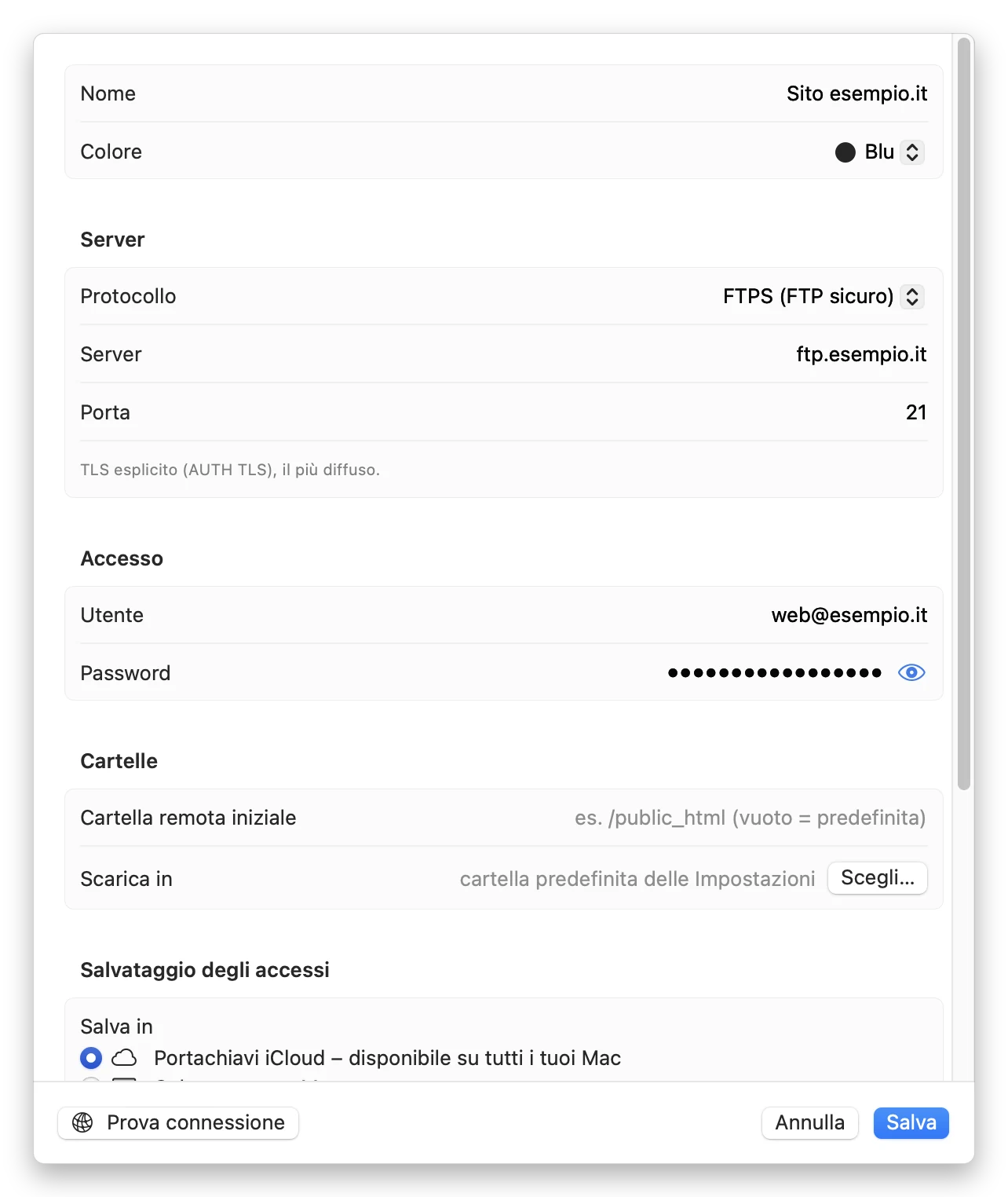
Every connection has a card with everything you need: protocol, server, port, user, start folder, where downloads go. A double-click connects you and the card turns into the file list, with sorting, filtering, a clickable path and back and forward history. You can keep several connections open at once: the connected ones show a green dot.
Drag and drop works both ways: files and folders from the Finder onto the window (or onto a folder in the path) to upload them, rows from the window onto the Finder or the Desktop to download them. At the bottom there's the transfer queue with progress bar, speed, time remaining and current file, and the percentage also shows on the Dock icon. Downloads are written to a temporary file and renamed only at the end: no half files.
For quick fixes there's Open and edit: double-click a file, it opens in the app you normally use, and every time you save it's uploaded back to the server on its own. .htaccess is always visible, and from the context menu you can also copy the web address of a file inside public_html, httpdocs or www.
Coming from Cyberduck or FileZilla?
On first launch Approdo checks whether Cyberduck is on the Mac and offers Import everything from Cyberduck: bookmarks, recent connections from the history and, if you want, the passwords Cyberduck saved in the Keychain. Before importing you see the list, choose what to keep, and duplicates are skipped. From FileZilla it reads sitemanager.xml, passwords included.
To move everything to another Mac there's the encrypted backup: a .approdo file protected with AES-256 and a password of your choice, which you can also keep on Google Drive, Dropbox or a USB stick.
The three things I'm proudest of
In the Keychain, behind Touch ID
Every connection, password included, is a macOS Keychain item. Seeing or copying it requires Touch ID, and when you copy it clipboard managers don't record it and it disappears from the clipboard after 90 seconds.
The server key gets checked
On SFTP the server key is remembered on first connection, like ssh does. If it later changes, Approdo stops and says so clearly instead of connecting anyway.
Fast even from far away
On SFTP reads and writes go out in parallel, sixteen blocks at a time, so a distant server doesn't slow everything down. Folders upload and download whole, recreating their structure.
Specs and requirements
- version 1.1
- new in 1.1 much faster FTP transfers (reused connections, 4 files at once), the Keychain asks for permission just once, fixed drag and drop from the Finder
- protocols FTP, FTPS (explicit and implicit), SFTP, WebDAV over HTTP and HTTPS, Amazon S3 and compatibles
- SFTP login password or OpenSSH key (ed25519 recommended, RSA)
- S3 AWS, Wasabi, Backblaze B2, Cloudflare R2, MinIO; bucket region found automatically
- requires macOS 14 Sonoma or later
- processor Apple Silicon and Intel
- imports from Cyberduck (bookmarks, history, passwords), FileZilla, .approdo backups
- language Italian
- price €9.99, once
A few limits, said up front
- On S3 a single file upload is limited to 5 GB: multipart upload will come in a later version.
- RSA SSH keys sign with
ssh-rsa, which the newest OpenSSH servers reject: in that case use an ed25519 key. - In the downloadable version logins stay in the Keychain of the Mac you use it on. To bring them to another Mac, use the encrypted backup.
- The interface is Italian only for now.
How to install
Download the .dmg
Click "Download": you pay through PayPal and the Approdo-1.1.dmg download starts on its own.
Drag it into Applications
Open the .dmg file: the window contains Approdo, a shortcut to Applications and a picture with the next step's instructions. Drag the Approdo icon onto Applications.
If macOS says it "can't be verified"
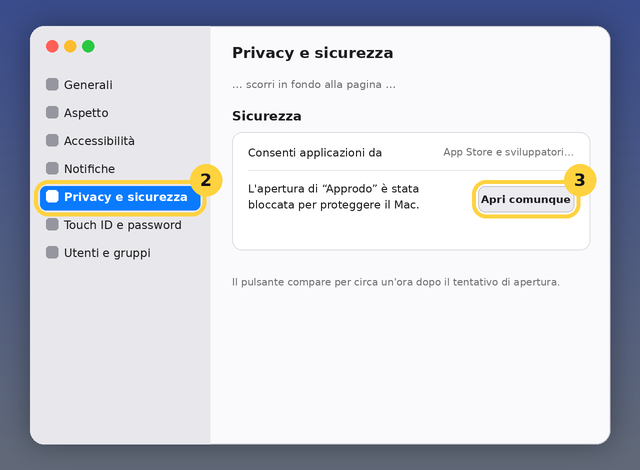
On the first double-click macOS warns it can't verify the app: click Done, then go to System Settings › Privacy & Security and at the bottom click Open Anyway. You only do it once. The step-by-step guide with screenshots is here.
The permissions it asks for
Approdo asks for no special permissions. The first time you import from Cyberduck, macOS asks permission to read each password from the Keychain: choose Always Allow.
Licence
€9.99 once, no subscription and no registration. The licence covers personal and professional use on your own Macs. It is not open source. I only ask that you don't redistribute the file elsewhere: link this page, so whoever installs it always gets the current version.
If something doesn't work, write to me.