macOS app · cleanup and maintenance
Free space,
with no surprises.
Pulito shows you where your space went and helps you get it back: caches, logs, temp files, Xcode and npm leftovers, forgotten large files, uninstalled apps with all their remains. And the rule that isn't up for debate: everything it deletes goes to the Trash, recoverable until you empty it.

six sections in the sidebar and a menu bar icon with the Mac's status.
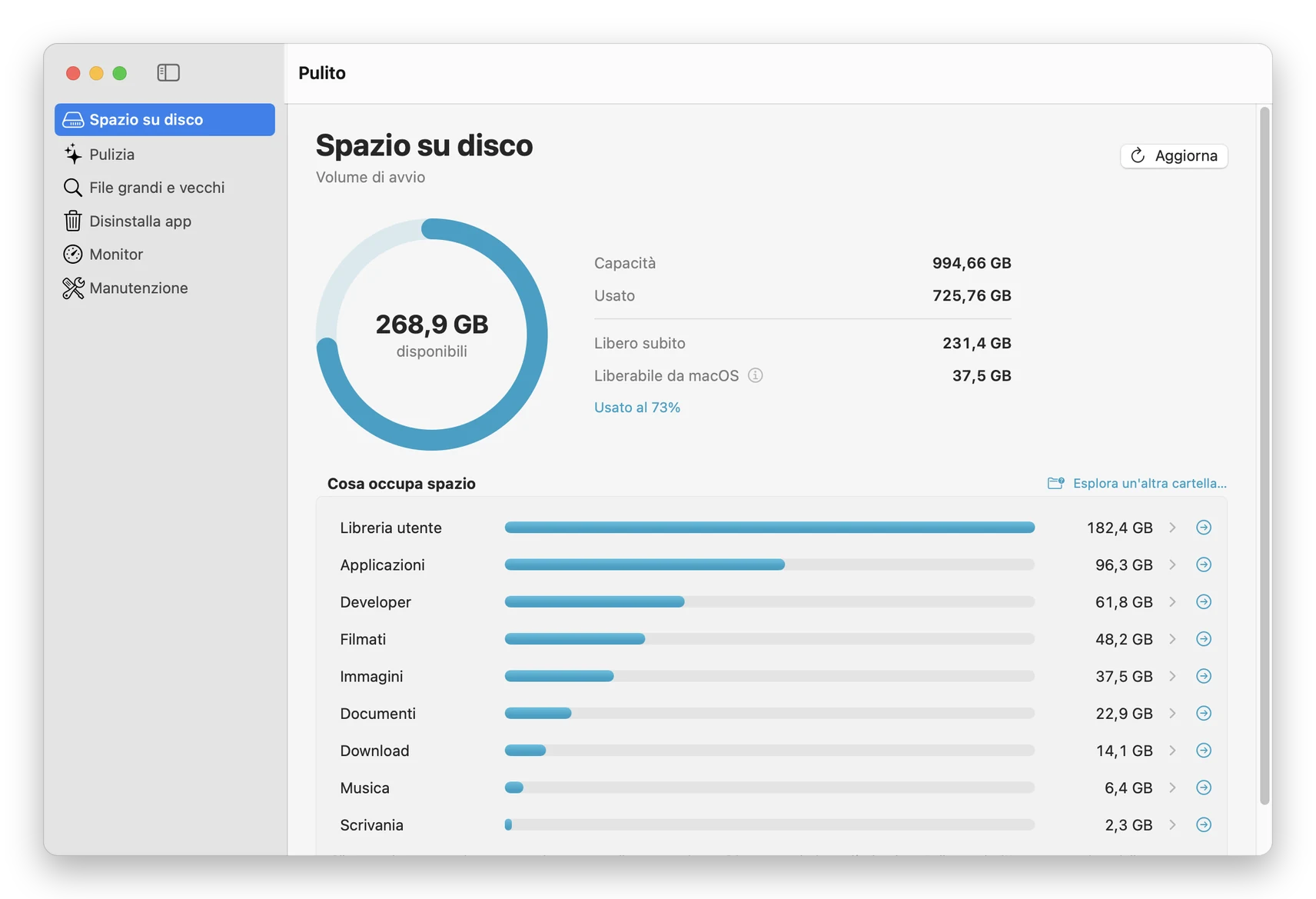
What it looks like
Why I wrote it
Developing on a Mac fills it up fast: Xcode's DerivedData, npm caches, device support files, simulators. I wanted a single panel that showed how much everything weighs and removed it in one click, without the fear of having deleted something important.
The six sections
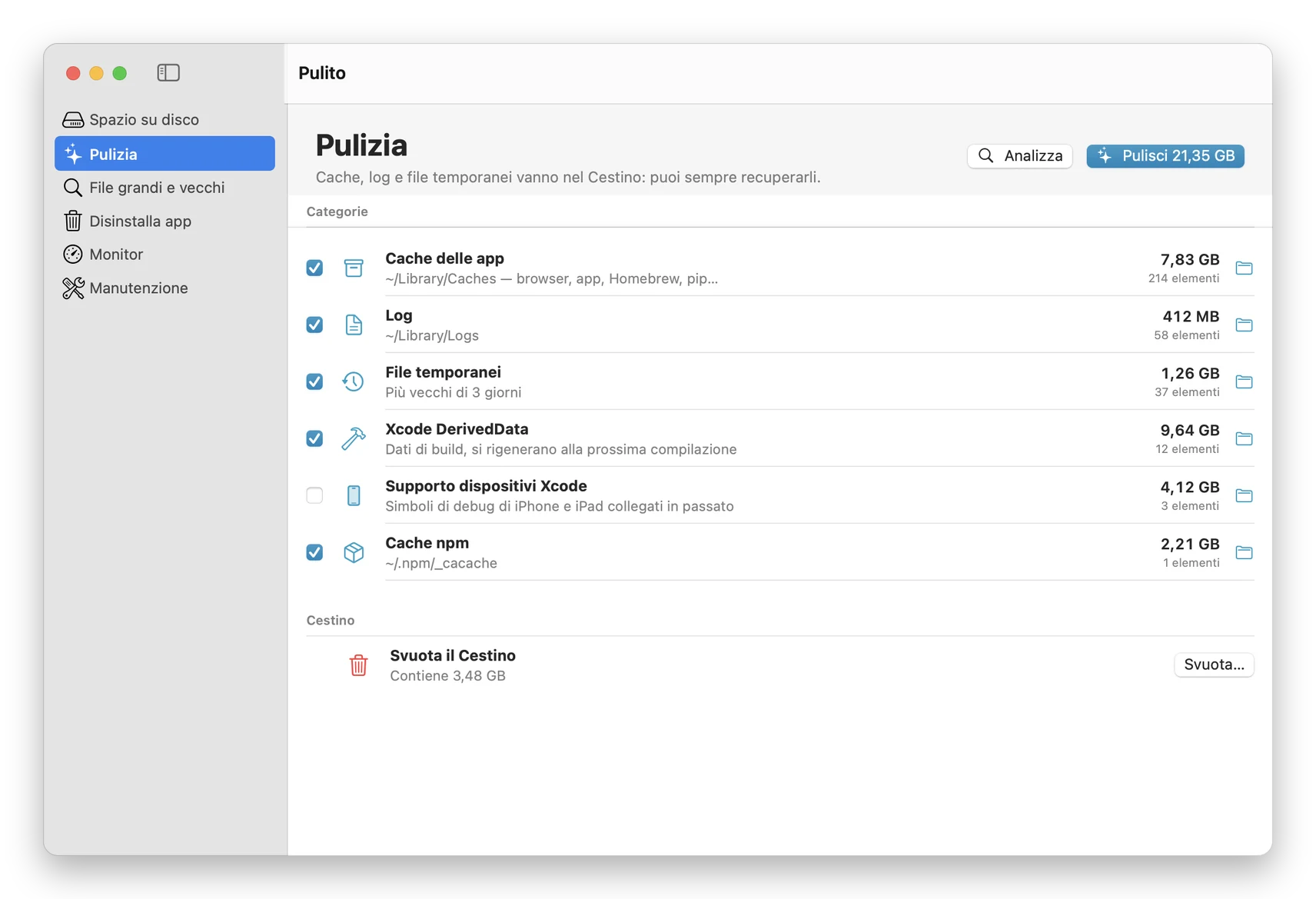
Disk space: used, free and reclaimable by macOS, and how much the main folders weigh, with a view that drills down into folders. Cleanup: app caches, logs, temp files, Xcode DerivedData and device support, npm cache, and emptying the Trash. Large and old files: searches a folder for files above a given size, with an age filter.
Uninstall apps: removes an app along with its leftovers in Library: preferences, caches, containers and support files. Monitor: CPU, memory and disk in real time, with a two-minute graph and the busiest processes. Maintenance: flushes the DNS cache, frees RAM, reindexes Spotlight, rebuilds Launch Services and Quick Look, manages Time Machine snapshots and verifies the disk.
The three things I'm proudest of
Everything to the Trash
Pulito never deletes directly: it moves to the Trash. If you removed one thing too many, you put it back from there.
You see what you remove
Every item shows path and size before it's touched, and admin operations ask for the password every time, with no hidden background services.
The Mac at a glance
From the menu bar icon you see processor, memory and disk, free RAM and empty the Trash without opening the window.
Specs and requirements
- version 1.3
- requires macOS 14 Sonoma or later
- processor Apple Silicon (M1 and later)
- deletes always to the Trash, recoverable
- language Italian
- price €9.99, once
A few limits, said up front
- Runs on Apple Silicon Macs; not on Intel Macs.
- Without Full Disk Access some protected folders look smaller and some app leftovers aren't found.
- Periodic maintenance scripts only exist up to macOS 14: on later versions the item doesn't appear.
- The interface is Italian only for now.
How to install
Download the .dmg
Click "Download": you pay through PayPal and the Pulito-1.3.dmg download starts on its own.
Drag it into Applications
Open the .dmg file: the window contains Pulito, a shortcut to Applications and a picture with the next step's instructions. Drag the Pulito icon onto Applications.
If macOS says it "can't be verified"
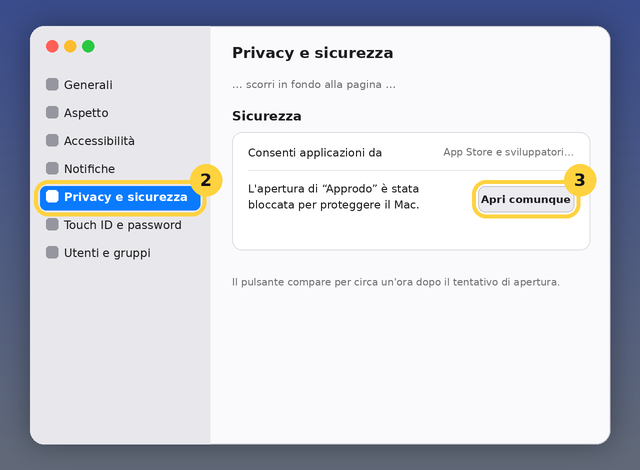
On the first double-click macOS warns it can't verify the app: click Done, then go to System Settings › Privacy & Security and at the bottom click Open Anyway. You only do it once. The step-by-step guide with screenshots is here.
The permissions it asks for
Recommended: Full Disk Access (System Settings › Privacy & Security › Full Disk Access, add Pulito). The first time you empty the Trash macOS asks to control the Finder: allow it. Items with a padlock in Maintenance ask for the administrator password.
Licence
€9.99 once, no subscription and no registration. The licence covers personal and professional use on your own Macs. It is not open source. I only ask that you don't redistribute the file elsewhere: link this page, so whoever installs it always gets the current version.
If something doesn't work, write to me.